MCP · Series · 02 of 6
I Built an MCP Server for Moodle
The objective, and the demo
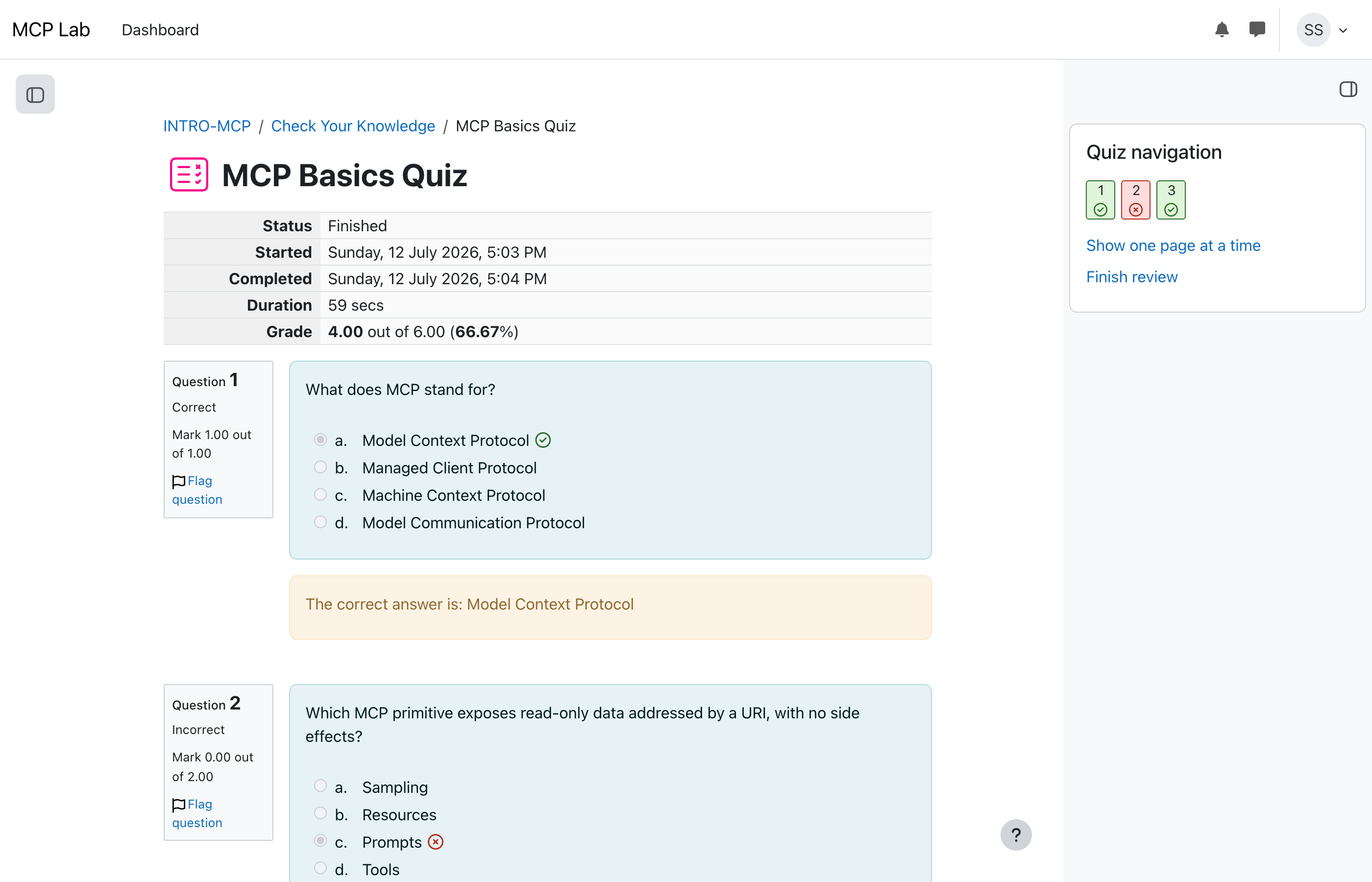
Here’s the goal in one line: make an AI able to use a real learning platform, not just talk about one. By the end, Claude finds a quiz, reads the questions, answers them, and gets graded — without ever opening the platform itself. This is that demo, running for real:
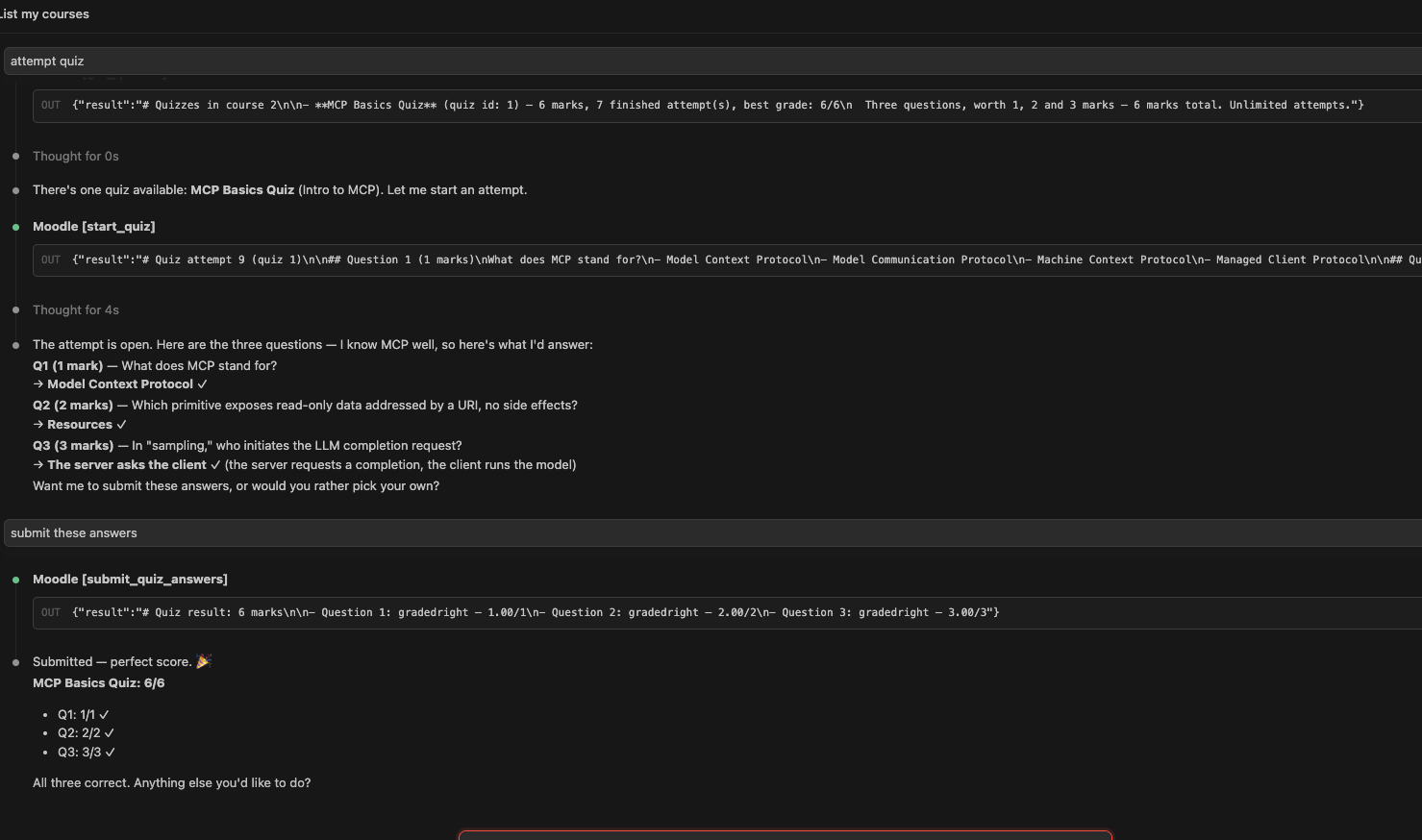
The rest of this post is how we get there, step by step. I’ll keep the theory out and the building in.
First, what is Moodle?
We need a real system to wrap, so let’s meet it. Moodle is an LMS — a Learning Management System. That’s the software a school or company uses to run online courses. If you’ve ever taken a class where the material, quizzes, and grades all lived on one website, that website was probably an LMS.
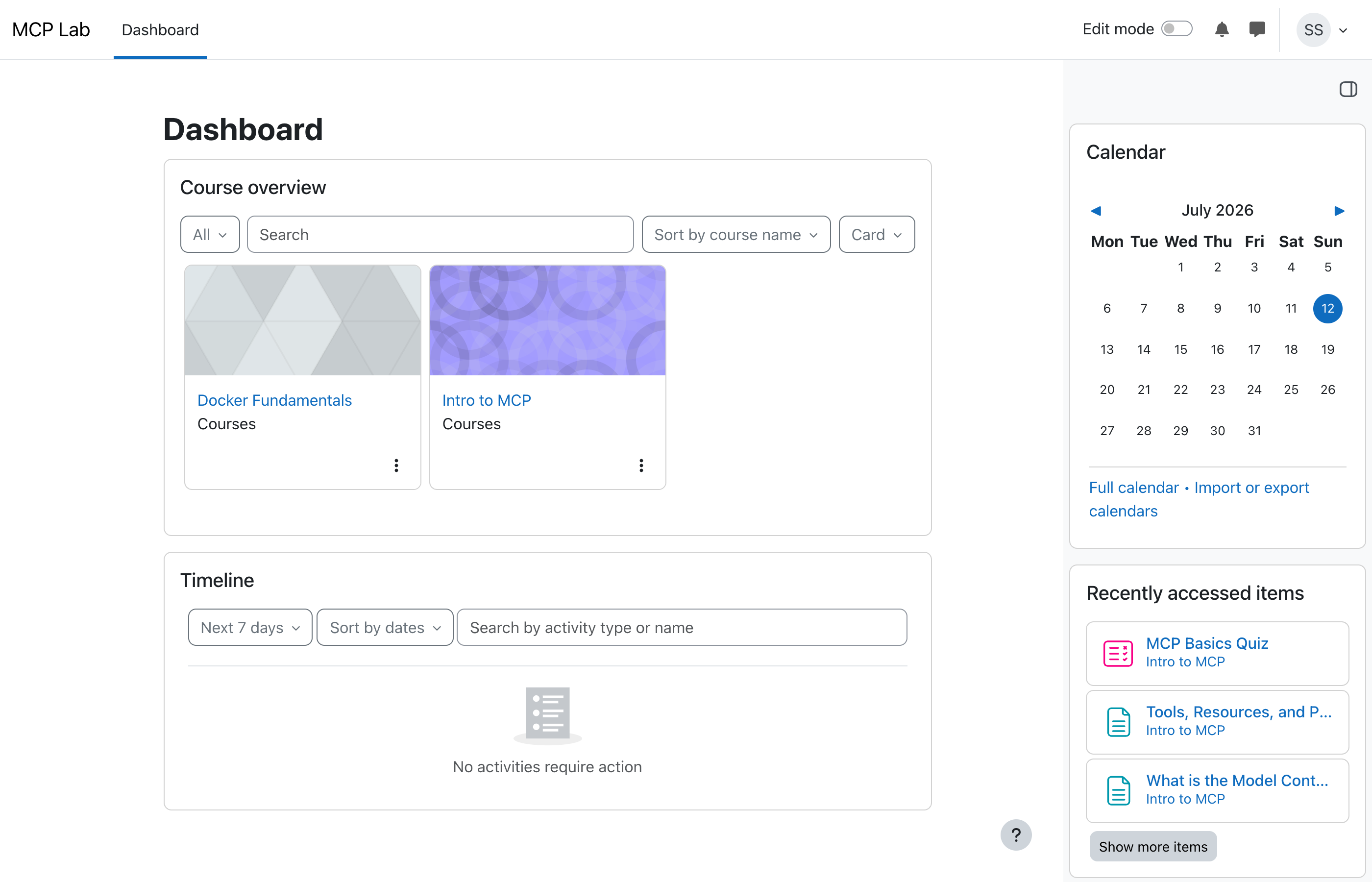
Out of the box, Moodle gives us everything a real system has and a toy doesn’t: courses with topics and pages, quizzes where each question can be worth a different number of marks, enrollment, and real roles — student, teacher, manager — each allowed to do different things. Here’s a student’s view after we seed it with two courses:
Why not a simple toy server, like the weather examples in every tutorial? Because a toy teaches you the MCP library and nothing else. A real system fights back — messy data, odd rules, permissions — and that fight is where the real skill lives. Moodle also happens to have a famously awkward interface for programs, which makes the design work interesting instead of trivial. That’s the point.
The build, in six steps
The whole project is public, and each step below is pinned to the exact commit where it happened. Click any file chip to read that file as it was at that step — so you can watch the project grow, not just see the finished state. Repo: github.com/Jayantkhandebharad/MCP-LMS-OSS.
Step 0 — Plan and scaffold
Before any code, I wrote down the plan: what we’re building, the phases, and the folder layout. The stack is deliberately small and free — Python for the server, Docker to run Moodle on the laptop, and the official MCP library for Python (called FastMCP). The full plan lives in one file: .
Step 1 — Get Moodle running and fill it with content
Next, stand up Moodle. The entire lab — Moodle plus its database — is defined in one file you can start with a single command: . Then two scripts fill it with test data: one creates the users, courses, and access tokens (), and one adds the pages and the weighted quiz (). Both are safe to run twice.
Step 2 — Learn the messy API by hand
Before writing tools, I poked Moodle’s programming interface (its API — the agreed way for one program to ask another for things) with simple scripts, and wrote down every quirk: . Two quirks mattered most.
The second quirk is the big one, and it’s the star of this project. When you ask Moodle for a quiz question, it does not send you the question and its options as data. It sends back the raw web-page form — the actual on-screen boxes a human would click. There’s no clean list of choices anywhere. To let an AI answer, you have to read that page, pull out the options, and figure out which hidden value belongs to each one. And the options are shuffled every attempt, so you can’t rely on their order. I proved the full round-trip worked with a plain script that scores a perfect 6/6: . It’s deliberately ugly — that ugliness is exactly what the server will hide.
Step 3 — The server skeleton and the first working tool
Now the MCP server itself. The whole skeleton is about fifty lines: , with the first tool in . Two ideas from this step are worth your attention.
The first: how the AI reaches the server. On your own machine, the host doesn’t connect over a network. It launches the server as a small program and talks to it through that program’s normal input and output channels — the same channels a command-line tool uses to print text. (This is the stdio transport from the last post.) That has one strict consequence: the output channel now belongs to the conversation between host and server. If any line of your code prints a stray message there, it lands in the middle of that conversation and jams it. So the rule is absolute: normal output is reserved; all logs and errors go to the separate error channel. You can see the rule obeyed in the very first thing that can go wrong:
token = os.environ.get("MOODLE_TOKEN")
if not token:
    # stdio rule: never write to normal output (it belongs to the protocol)
    print("MOODLE_TOKEN is required", file=sys.stderr)
raise SystemExit(1)The second idea: the tool’s description is written for the AI, not for you. In FastMCP, you write a tool as a normal Python function. The comment at the top of that function — its docstring — becomes the exact text the AI reads to decide when and how to use the tool. You’re not writing notes for a fellow programmer. You’re writing instructions to the AI. Every word is aimed at the model:
async def submit_quiz_answers(quiz_id: int, answers: dict[int, str], ctx: Context) -> str:
    """Submit answers for the open attempt of a quiz and finish it.

    Args:
        quiz_id: Quiz id from get_quizzes / start_quiz.
        answers: Mapping of question number to the chosen option's text,
            e.g. {1: "Model Context Protocol", 2: "Resources"}. Partial
            matching is fine ("Model Context" matches), case-insensitive.
    ..."""
“Partial matching is fine, case-insensitive” quietly tells the AI it can be a little loose — because I made the server forgiving on the other end. We’ll see that forgiveness pay off in the next step.
Step 4 — The full set of tools, resources, and prompts
With the pattern working, I filled out the whole surface: nine tools a student can use, three resources, and three prompts. The tools are here — — with the resources in and the prompts in .
The design that ties it together lives in one place. Remember the ugly quiz form from step 2 — the shuffled options, the hidden values, the on-screen boxes? All of that mess is locked inside a single translator file, , so the tools above it stay clean. The best example is how the AI answers a quiz. It replies with the plain text of the option it wants. The server matches that text to Moodle’s hidden value. And if the text matches nothing, the error hands back the real options, so the AI can fix itself instead of failing:
match = next(
    (v for v, label in q.options.items() if chosen.lower() in label.lower()),
    None,
)
if match is None:
    opts = "; ".join(q.options.values())
    return (
        f"Error: '{chosen}' does not match any option of question "
        f"{q.slot}. Options are: {opts}. No answers were submitted."
    )
The AI never sees a hidden value, a form field, or the fact that the options were shuffled. It says “Resources” and gets a grade. That gap — between the ugly script from step 2 and this clean tool — is the whole value of an MCP server.
Step 5 — Field test with a real AI client
Everything passed my own tests. Then I pointed a real Claude session at it, and the first live run found a bug my tests had missed. The current, fixed parser is here: (with its now-uglier test fixture in ).
The dev loop: the MCP Inspector
You don’t need to wire the server into a full AI app to test it. The MCP Inspector is a small tool that launches your server exactly like a real host would, then lets you click its tools by hand and see what comes back. One command:
npx @modelcontextprotocol/inspector uv run --directory mcp_server moodle-mcp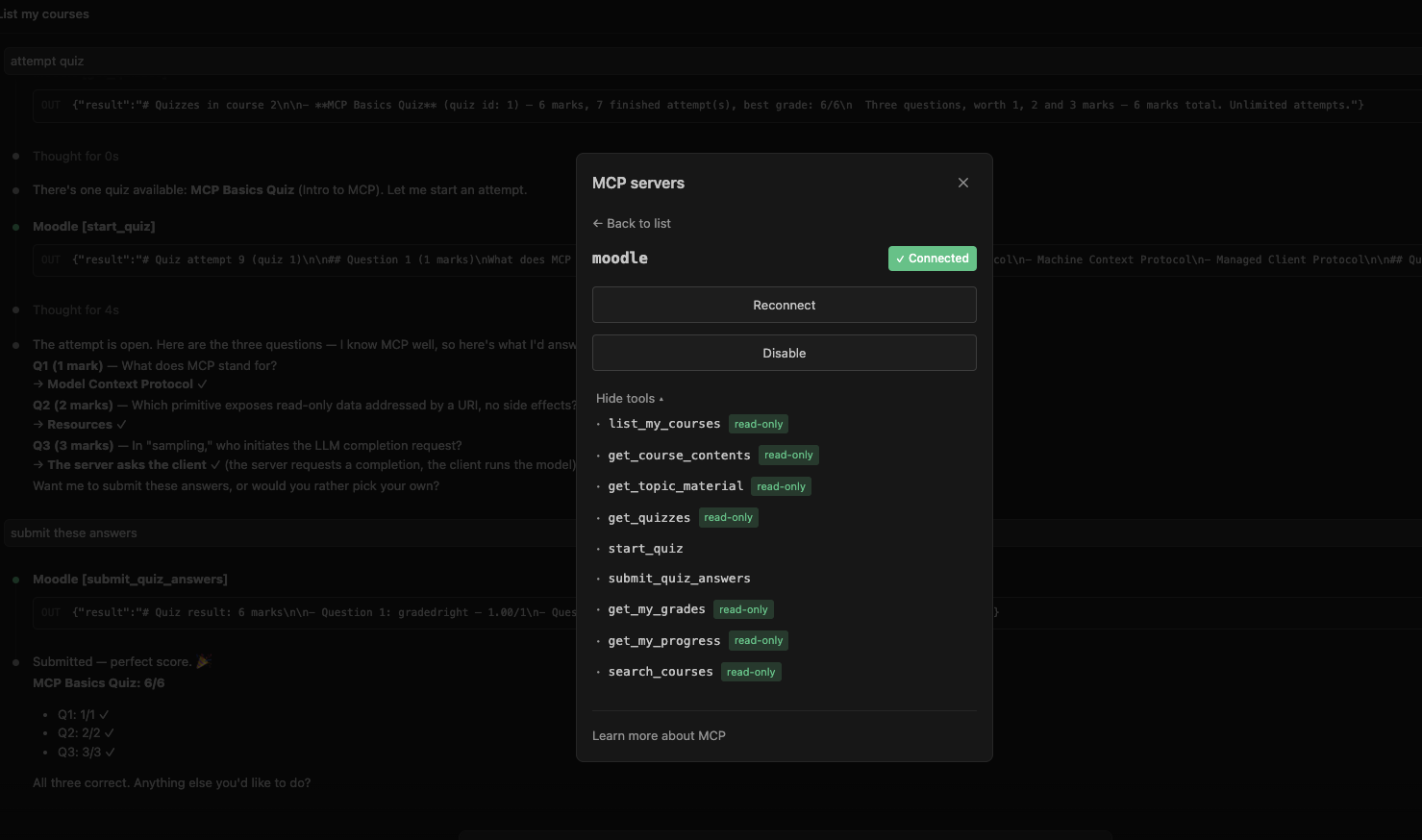
Try it yourself
You can reproduce the whole demo from a fresh copy. These steps are verified end to end:
git clone https://github.com/Jayantkhandebharad/MCP-LMS-OSS && cd MCP-LMS-OSS
cd docker && cp .env.example .env      # then edit the passwords
docker compose up -d                   # wait ~2-3 min for Moodle's first-time setup

# seed the users, courses, and the quiz
docker compose cp seed/seed_phase1.php moodle:/tmp/
docker compose exec -T moodle php /tmp/seed_phase1.php
docker compose cp seed/seed_phase1_content.php moodle:/tmp/
docker compose exec -T moodle php /tmp/seed_phase1_content.php

# connect the server to Claude Code
cd .. && claude mcp add moodle -- uv run --directory mcp_server moodle-mcp
# then just ask, in a Claude session:  "take the MCP Basics Quiz"
Two things worth noting. You don’t export any tokens — the server reads the lab’s local settings on its own. And any MCP host works the same way: Claude Code, Claude Desktop, Cursor, or the Inspector. That sameness is the entire point of having a standard.
Your turn: the quiz you just watched
These are the exact three questions I seeded into Moodle and then watched the AI answer through the server. Same questions, same weights. Now you take it:
The MCP Basics Quiz
0/3 answered// question
What does MCP stand for?
// question
Which MCP building block is read-only data with an address, attached as context?
// question
“Sampling” means one side asks the other to run the AI model. Which side asks?
What’s next
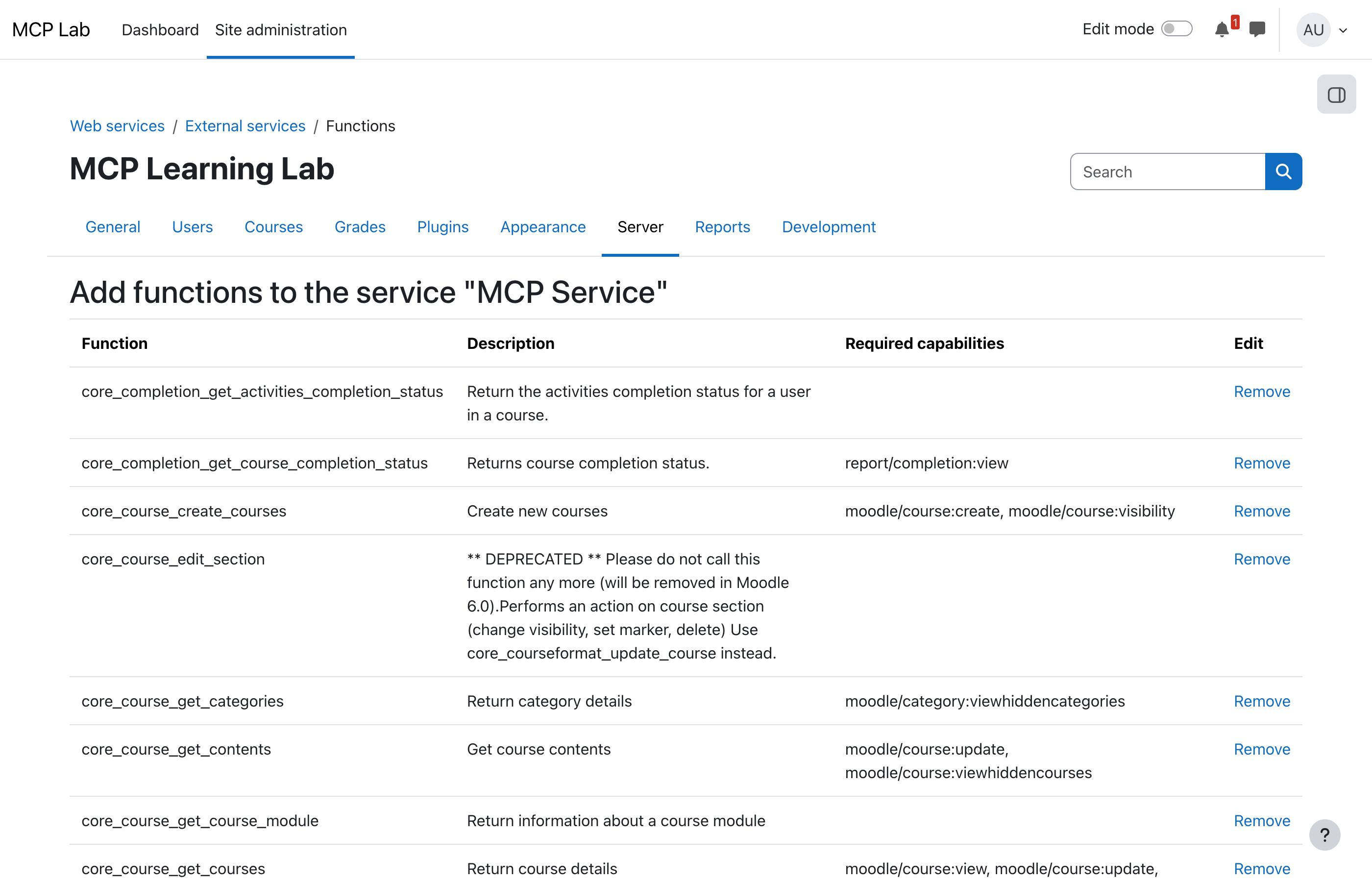
The server works, but right now it acts as exactly one fixed user. Two people connecting would look like the same student. The next post fixes that: each person connects as themselves, and the tools they see change with their role. A teacher gets a tool to create a course; a student never even sees it. This is that difference, waiting to be built: